Amazon blocked SportsFire from its Appstore. This guide shows you how to install it in minutes using NoroFire — the official installer from the SportsFire developers. Works on all Fire TV devices.
This guide works on every Amazon Fire TV device running Fire OS 5 or higher.
HD streaming
HD streaming
4K Ultra HD
4K + Wi-Fi 6E
Hands-free 4K
Built-in Fire OS
Why is this needed? Amazon blocked SportsFire from being installed directly through the Appstore. NoroFire is the official solution provided by the SportsFire developers — it safely downloads and installs the latest SportsFire APK on your device.
Before installing any sideloaded app on FireStick, you must allow apps from unknown sources. This is a one-time setting.
From the FireStick home screen, go to the top menu and navigate to Settings (the gear icon on the right side).
Scroll right and select My Fire TV (sometimes labeled "Device" on older Fire TV models).
Select Developer Options. If you don't see it, first tap "About" and click your Fire TV serial number 7 times to unlock developer mode.
Find Apps from Unknown Sources (or "Install Unknown Apps") and toggle it to ON. Accept any warning that appears.
Tip: On newer Fire TV models (2023 and later), the setting may be under Settings → Privacy → Apps with Device Access → Downloader → Allow.
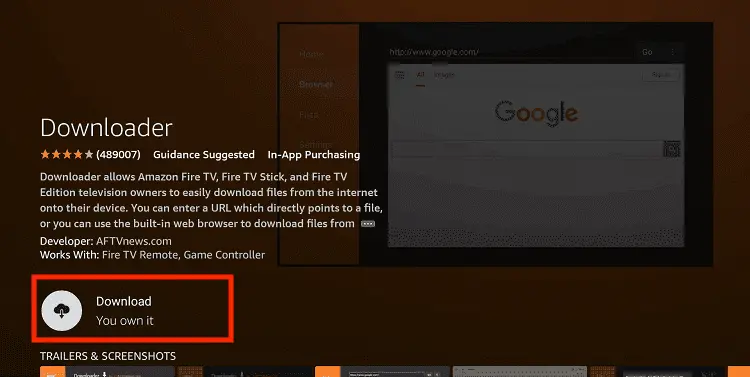
Downloader is a free app available in the Amazon Appstore. It's the easiest way to sideload APKs using a short code or URL.
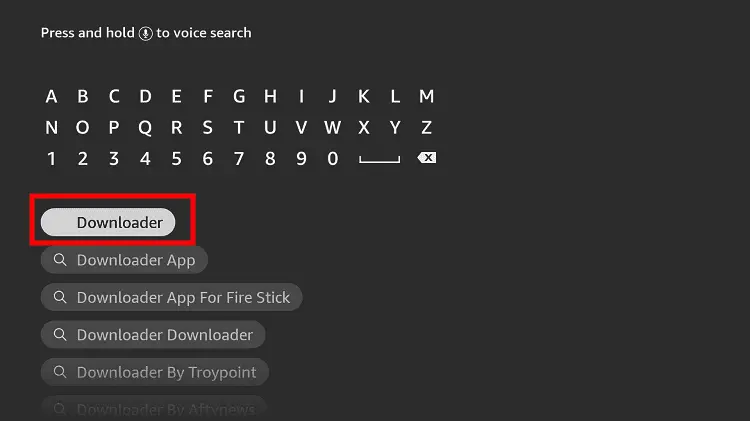
From the FireStick home screen, click the search icon (magnifying glass) at the top left, or use the Alexa button and say "Downloader".
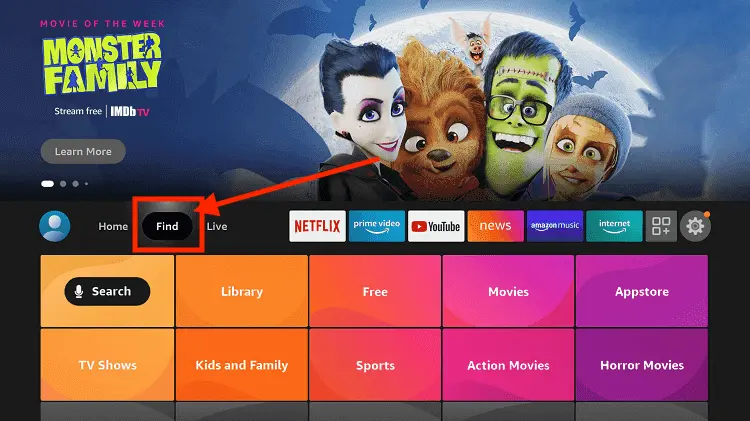
Type Downloader in the search box. Look for the app by AFTVnews — it has an orange icon.
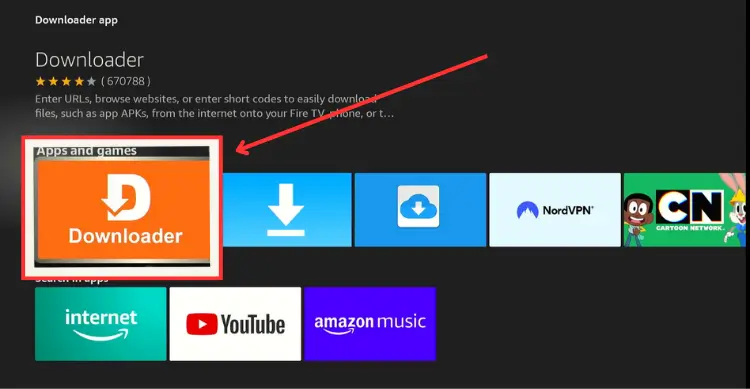
Select the Downloader app and click Get or Download. It's completely free and available in all Amazon Appstore regions.
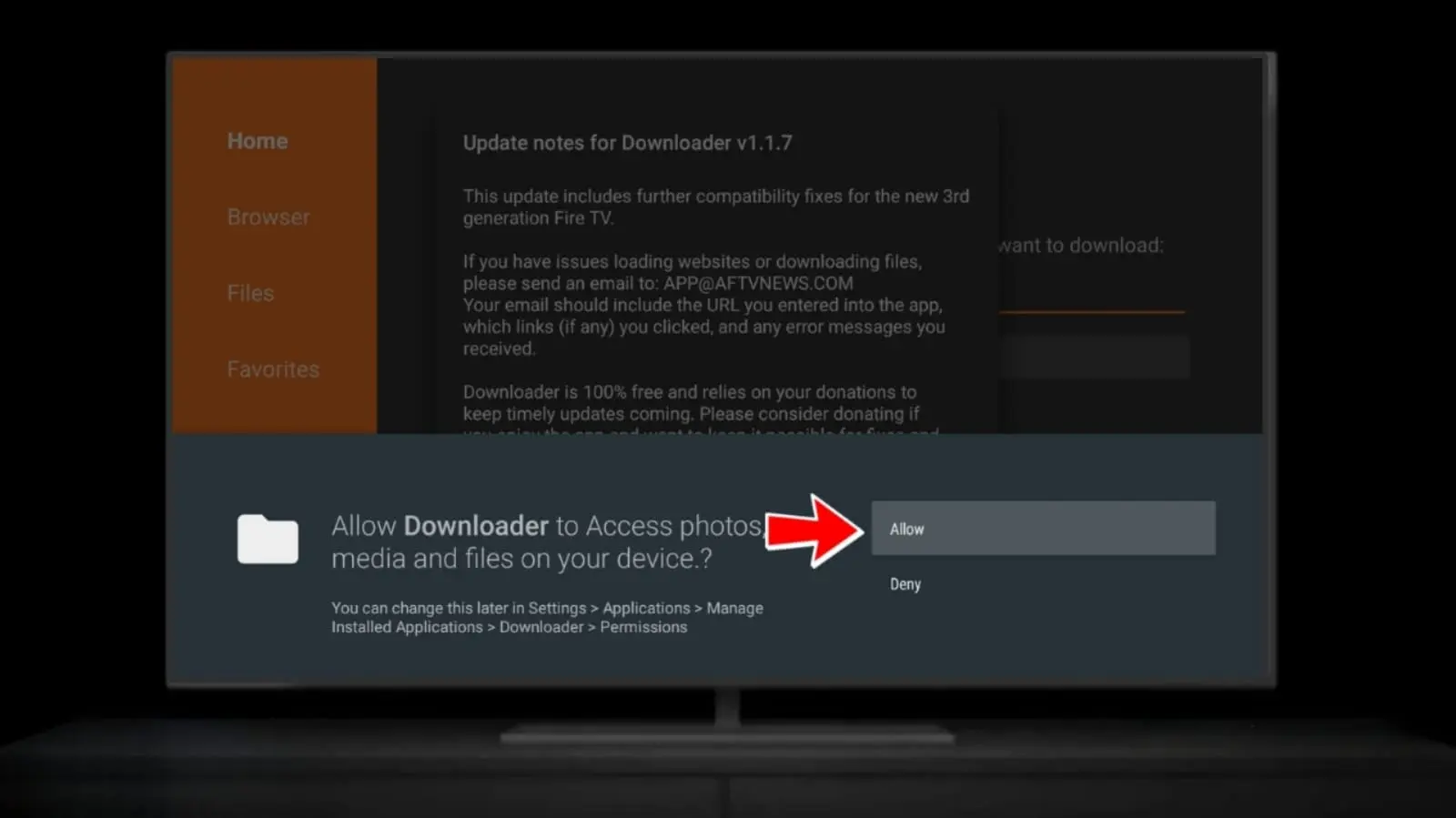
Launch Downloader. The first time you open it, it will ask for permission to access files — tap Allow.
With Downloader open, you'll see a URL/code input field. Enter the NoroFire code below to automatically fetch the NoroFire installer.
In Downloader, select the text input field at the top. The on-screen keyboard will appear.
Enter the code 7446077 or type the URL norofire.com using the on-screen keyboard.
Select the Go button. Downloader will connect to the NoroFire server and begin downloading the NoroFire APK file.
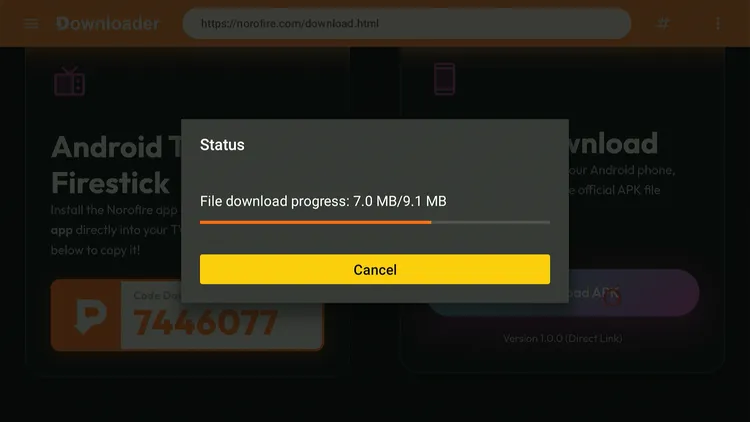
Once the NoroFire APK downloads, you'll be prompted to install it. This is safe — NoroFire is the official tool made by the SportsFire developers.
Downloader will show a progress bar as NoroFire downloads. It's a small file so it should complete in seconds.
When the install prompt appears, scroll down and tap Install. Wait for the installation to complete.
After installation, tap Open to launch NoroFire — or find it in your FireStick's "Your Apps & Channels" section.
Tip: After installing NoroFire, you can delete the APK file to free up space. Downloader may ask you — tap Delete.
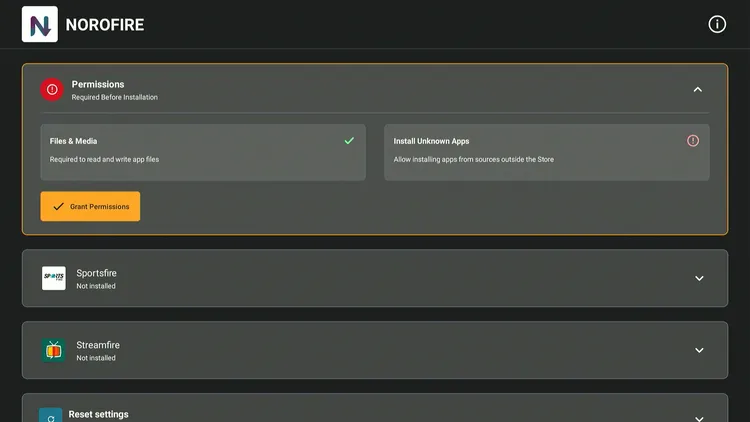
NoroFire is a lightweight installer app that gives you access to the latest working versions of SportsFire and StreamFire.
Launch the NoroFire app. You'll see a list of available apps including SportsFire and StreamFire.
Choose SportsFire from the NoroFire menu. You can also install StreamFire here if you want an alternative.
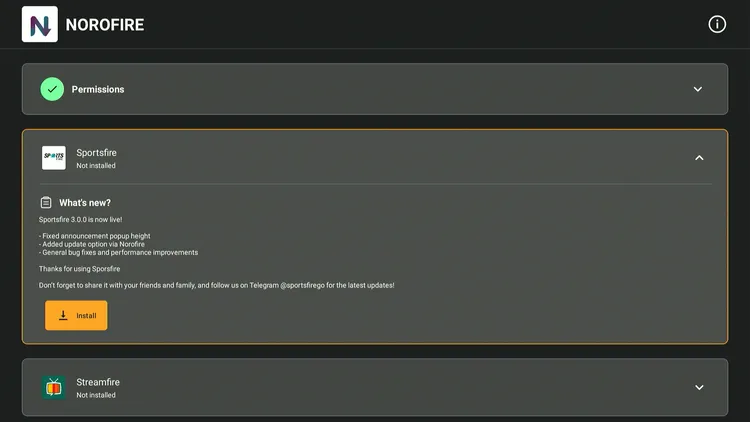
NoroFire will download the latest SportsFire APK (v2.0.3) and install it. Tap Install when prompted.
SportsFire is now installed on your FireStick. Here's how to get the most out of it.
Go to your FireStick home screen. SportsFire will appear under Your Apps & Channels. You can move it to the top row for quick access.
Before streaming, connect to Proton VPN (free) for secure, private streaming. This also helps avoid ISP throttling and buffering.
Open SportsFire, browse channels by country or sport, add favourites to your watchlist, and enjoy lag-free live sports!

Running into problems? These are the most common SportsFire issues on FireStick and how to fix them.
This is the most common issue. First, press the Refresh button on the stream. If that doesn't work, go to Settings → About inside the app — if you're not on v2.0.3, update it. As a last resort, clear the app cache (Settings → Applications → Manage All → SportsFire → Clear Cache) and try again.
Make sure you've typed the code exactly: 7446077. Alternatively, use the full URL: norofire.com. Also check that your FireStick has a working internet connection and that Unknown Sources is enabled in Developer Options.
Buffering is usually caused by internet speed or ISP throttling. Try: (1) Connect to a VPN (Proton VPN free tier works). (2) Select a different stream source for the same channel. (3) Reduce video quality to HD instead of FHD. (4) Close background apps and clear FireStick cache.
This usually means insufficient storage. Go to Settings → Applications → Manage All Installed Applications and uninstall apps you don't use. Also make sure Unknown Sources is enabled. If you have an older SportsFire version, try uninstalling it first before installing the new one.
Go to Settings → My Fire TV → About. Select "Fire TV Stick" and press the select button 7 times rapidly. You'll see a message saying "You are now a developer." Go back to My Fire TV and Developer Options will now appear.