Full step-by-step guide to sideload SportsFire APK on any Android TV device — including TV boxes (Nvidia Shield, Mi Box), Google TV (Chromecast), and Android TV OS smart TVs.
This guide covers all Android-based TV devices. Choose your device type below to see the specific guide.
Chromecast 4K, Sony BRAVIA
Mi Box, H96 Max, X96
Shield TV Pro, Shield TV
Sony, Philips, Sharp
TCL, Hisense, Sony
Phones & tablets
Android TV requires you to allow installation of apps from outside the Play Store. This is a one-time setting.
From the Android TV home screen, scroll up to find the Settings gear icon, or press the settings button on your remote.
Navigate to Device Preferences → Security & Restrictions (or Privacy → Security on some models).
Find Unknown Sources and toggle it ON, or find the Downloader app in the list and enable it specifically. Accept the warning.
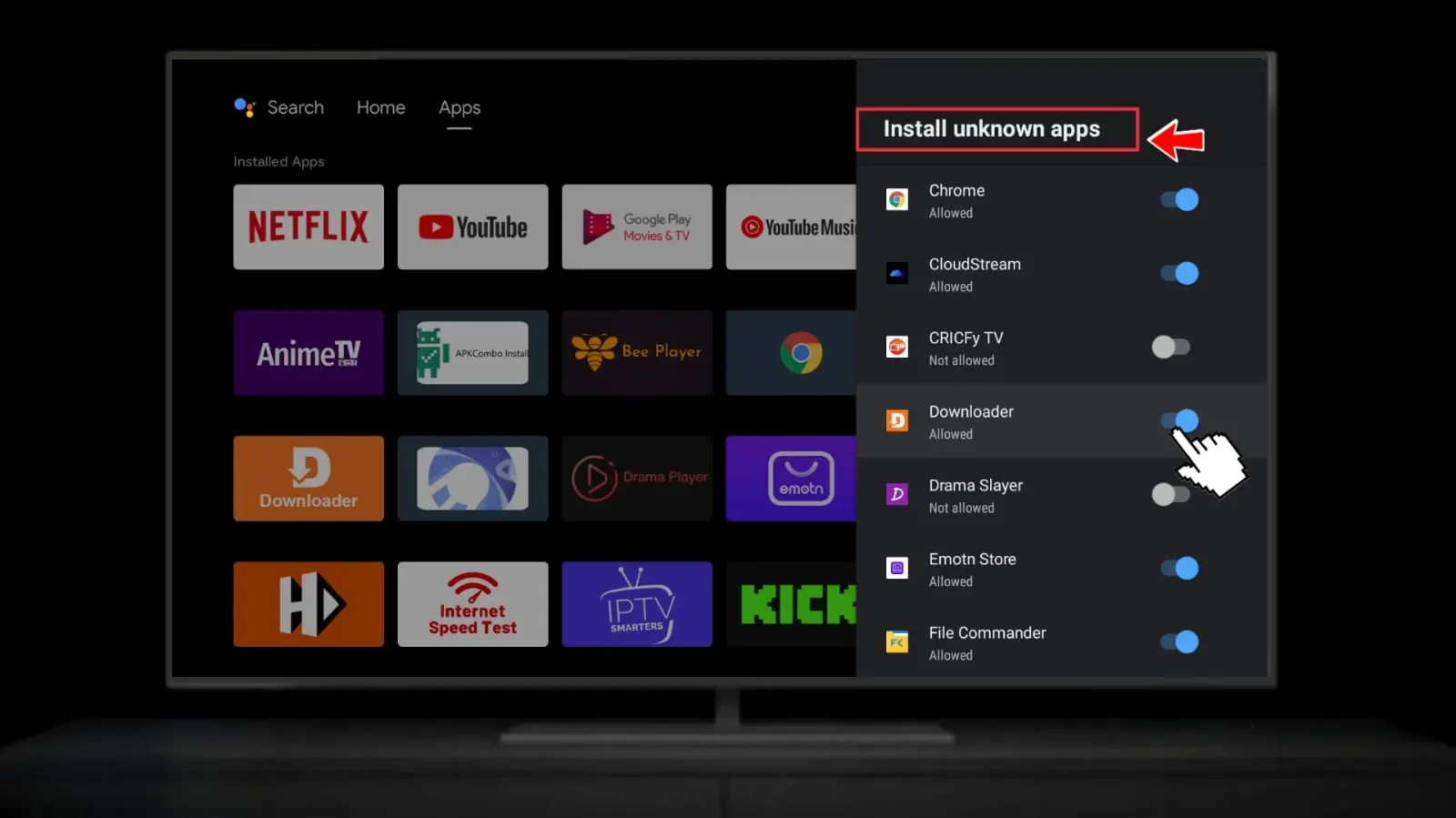
Note: On some Android TV boxes the path differs. Try: Settings → More Settings → Security → Allow Unknown Sources.
Find the Google Play Store on your Android TV home screen and open it.
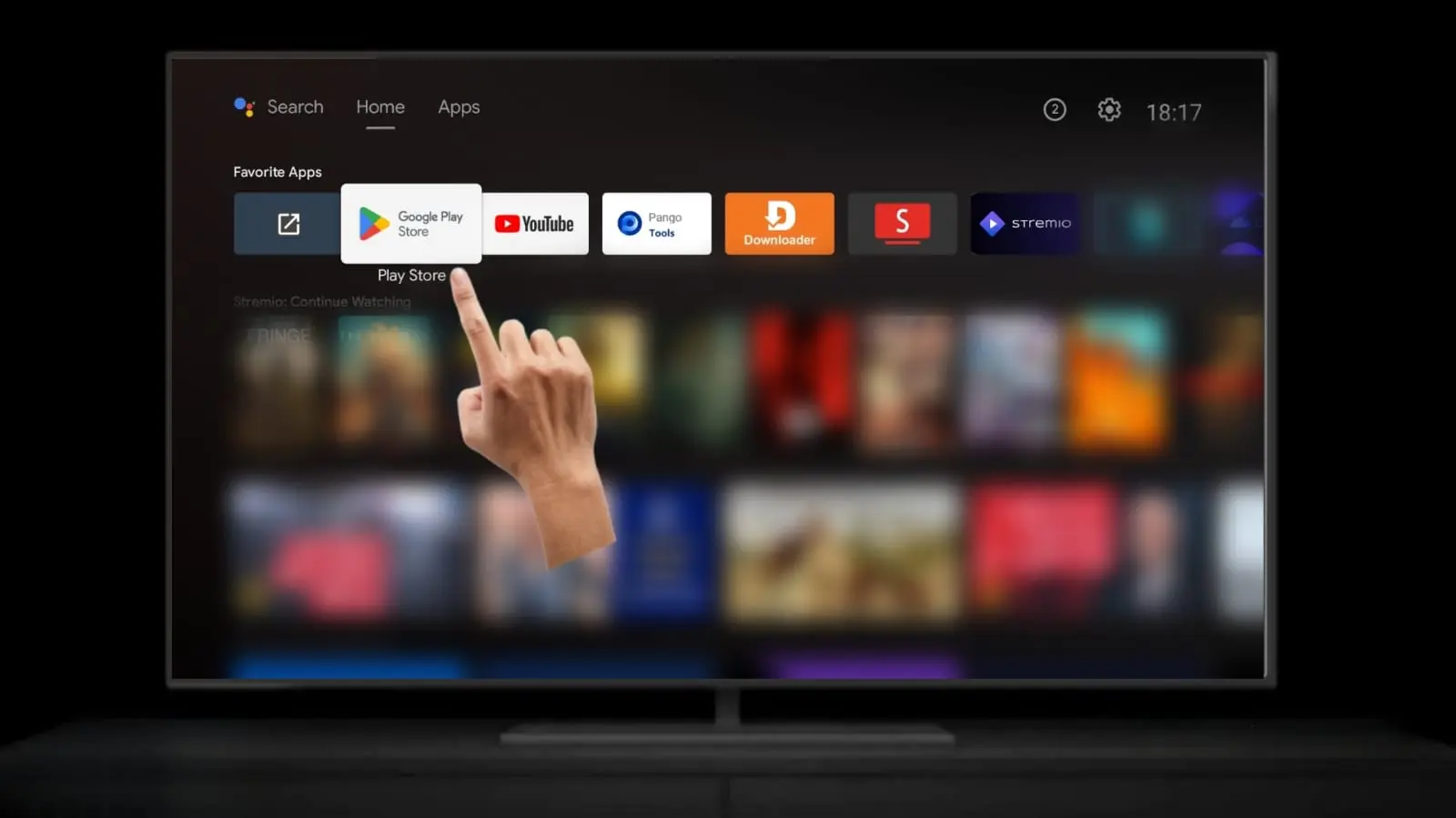
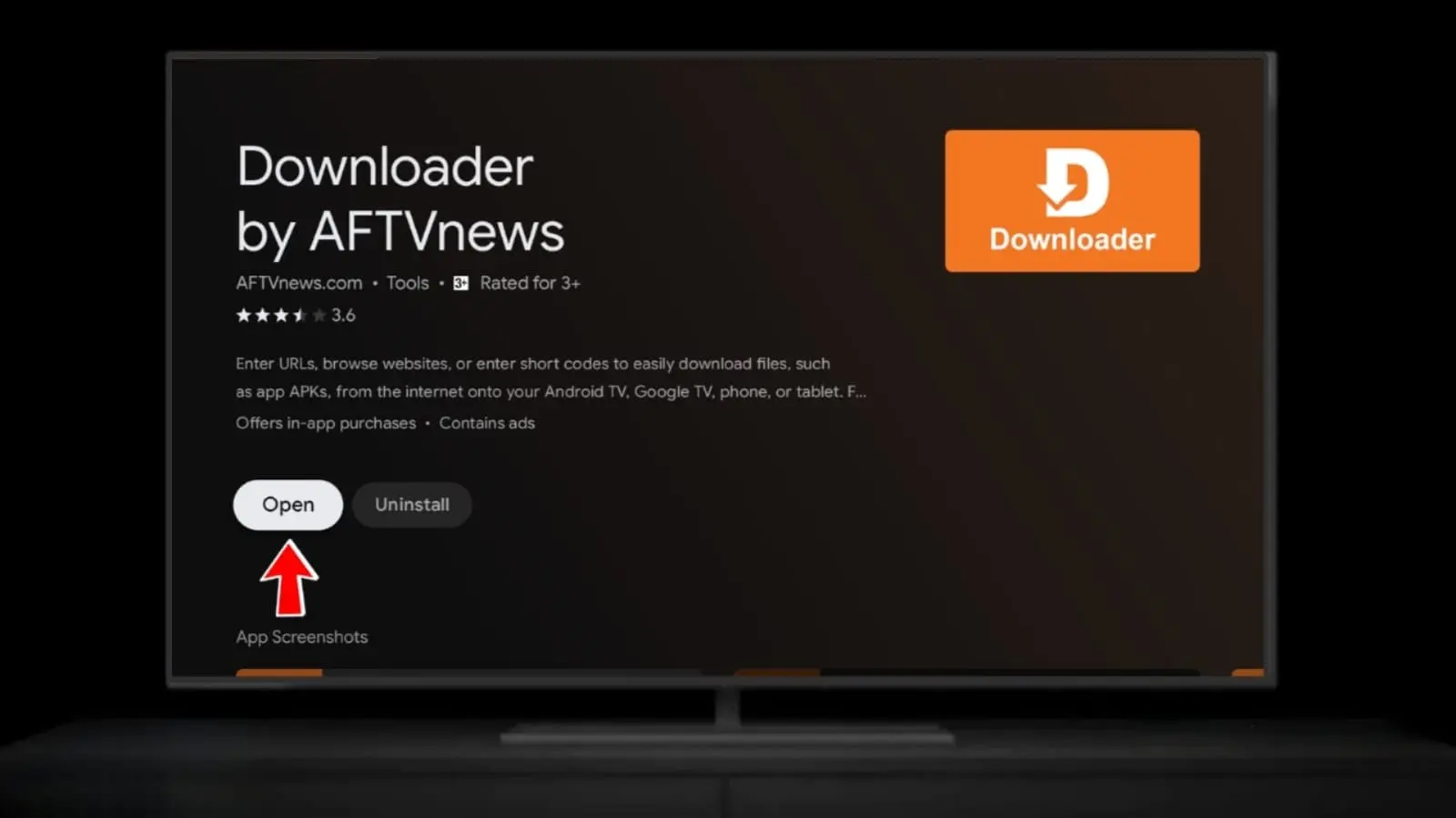
In the Play Store search bar, type Downloader. Look for the app by AFTVnews (orange icon). It's free.
Tap Install, wait for it to download, then open the app. Grant the storage permission when asked.
No Play Store? Some Android TV boxes ship without the Play Store. In that case, use your box's built-in browser to visit norofire.com directly, or use a pre-installed file manager to sideload Downloader first.
Open Downloader on your Android TV and select the URL/code input field at the top of the screen.
Using the on-screen keyboard, enter 7446077 (or type norofire.com) and select Go. The download will start automatically.
Downloader will show a progress bar. NoroFire is a small file and should download in a few seconds.
The Android TV install screen will appear. Scroll down and tap Install. The installation takes about 10–15 seconds.
Once installed, tap Open to launch NoroFire directly. You can also find it in your All Apps list.
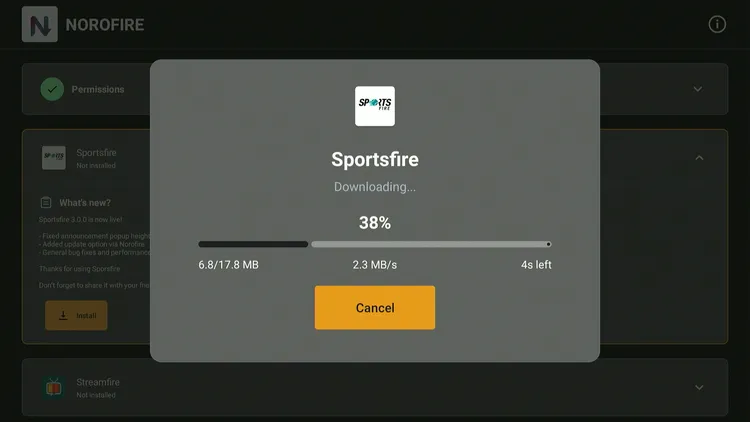
NoroFire shows available apps. Select SportsFire from the list and tap the install button.
NoroFire downloads the latest SportsFire v2.0.3 APK and triggers the install. Tap Install when prompted.
Find SportsFire in your All Apps list. Open it, browse channels by country or sport, and start streaming!
Google TV devices include: Chromecast with Google TV (4K/HD), TCL Google TV, Hisense Google TV, Sony BRAVIA XR with Google TV.
Navigate to the Play Store from your Google TV home screen. Search for Files by Google and install it (it's free).
Go to Settings → Apps → Security & Restrictions → Unknown app installs → enable for Files by Google.
You can also install Downloader from the Play Store for a simpler experience with the code system.
Use the code field in Downloader to fetch and install NoroFire.
After NoroFire installs, open it, select SportsFire, and install it.
SportsFire appears in your Google TV apps list. Move it to the home row for easy access.
Nvidia Shield runs a clean version of Android TV and is the easiest device to sideload apps on — it has no additional security restrictions.
Toggle Unknown Sources to ON. This is usually already available on Shield without unlocking developer mode.
Search for "Downloader" in the Play Store, install it, then use code 7446077 to get NoroFire and then SportsFire.
Once Downloader fetches NoroFire, install it, open it, and choose SportsFire. The Shield's fast processor ensures a smooth install experience.
Go to Settings → Apps & Notifications → Special App Access → Install Unknown Apps (path varies by Android version).
Select Chrome (or your default browser) and toggle Allow from this source to ON. Or just try downloading — Android 8+ will prompt you automatically.
For Android phones, you can download the SportsFire APK directly from our download page — no need for NoroFire.
Go to Download PageOpen your Downloads folder (Files app or notification drawer) and tap the SportsFire APK file.
Android will show an install screen. Tap Install and wait a few seconds. Then tap Open.
Go to Settings → Security & Restrictions → Unknown Sources and make sure it's enabled specifically for the Downloader app (not just globally). Some Android TV versions require per-app approval.
If you can't find Downloader in the Play Store, use your Android TV's built-in browser to visit norofire.com directly and download the NoroFire APK from there.
Some cheaper Android TV boxes run older Android versions. Make sure your box runs Android 5.0 or higher. If SportsFire crashes on launch, try clearing the app data: Settings → Apps → SportsFire → Clear Data, then reopen.
Older TV boxes with 1GB RAM may struggle. Try: (1) Close all background apps. (2) Use a wired Ethernet connection instead of Wi-Fi. (3) Select SD or HD quality instead of FHD. (4) Connect to a VPN to bypass ISP throttling (Proton VPN free works great).